Transparent Spider Web GIF
Ever stumbled upon a fascinating spider web, only to wish you could share its intricacy with others? GIFs, or Graphics Interchange Format files, can help you do just that, preserving the animated magic of a spider web for all to see. But what if you want to use a spider web GIF on a transparent background? Here's how you can create and use spider web GIFs with transparency.
First, let's understand why you might want a transparent background. Imagine adding your spider web GIF to a webpage or presentation. A solid background might seem unnatural or detract from the web's spidery elegance. That's where transparency comes in, helping your GIF blend seamlessly into any background.
Crafting the Perfect Spider Web GIF
Before we delve into transparency, let's ensure you have a captivating spider web GIF. Use a good camera, steady lighting, and capture the web from the best angle. Consider using Photoshop or GIMP to enhance the image quality and remove any distracting elements.


Now, let's animate your still image. You can use software like Photoshop, GIMP, or dedicated GIF-making tools like Ezgif or CyberLink GIF Animator. Experiment with different frame rates and delays to create the perfect, mesmerizing spider web GIF.
Preparing Your GIF for Transparency
Before you can create a transparent background, ensure your GIF is in the correct format. Most GIF-making software allows you to choose the format when saving. Opt for "Single Background Color" or "Transparency" mode, which will limit the GIF to a palette of 256 colors. This step is crucial for the next one.


Next, remove any unnecessary colors from your GIF. Use a color reduction tool or palette optimizer to minimize the color count. This step might seem counterintuitive, but reducing colors helps preserve the transparency later on. Software like PeaZip or ImageOptim can help with this.
Creating a Transparent Background
Now, it's time to add transparency. In most GIF editing software, you can choose a color to be transparent. Select the background color of your GIF, usually white, and apply the transparency effect. This makes that color 'invisible', allowing whatever is behind your GIF to show through.
Some GIF tools might not support transparency directly. In these cases, you can save your GIF with a transparent background, then use a separate image editor like GIMP or Photoshop to add transparency. However, this might require a more complex process, such as layering and alpha channels.


Deploying Your Transparent Spider Web GIF
With your GIF complete and transparent, it's time to share it with the world. Upload it to your preferred platform, like a website or social media. Always preview your GIF on the platform to ensure the transparency works as expected.
Consider using your GIF in a web-based project, where transparency can truly enhance its allure. A website, blog post, or online presentation can benefit from a spider web GIF that lets the page's background show through.
Optimizing Your GIF for Web Use
같아 TX Often, GIFs can be heavy and slow to load, which can harm your website's performance. To ensure your GIF displays quickly and smoothly, consider optimizing it for the web. Tools like Gifsicle, Squoosh, or online optimizers like GifOptimizer can help reduce the file size with minimal quality loss.


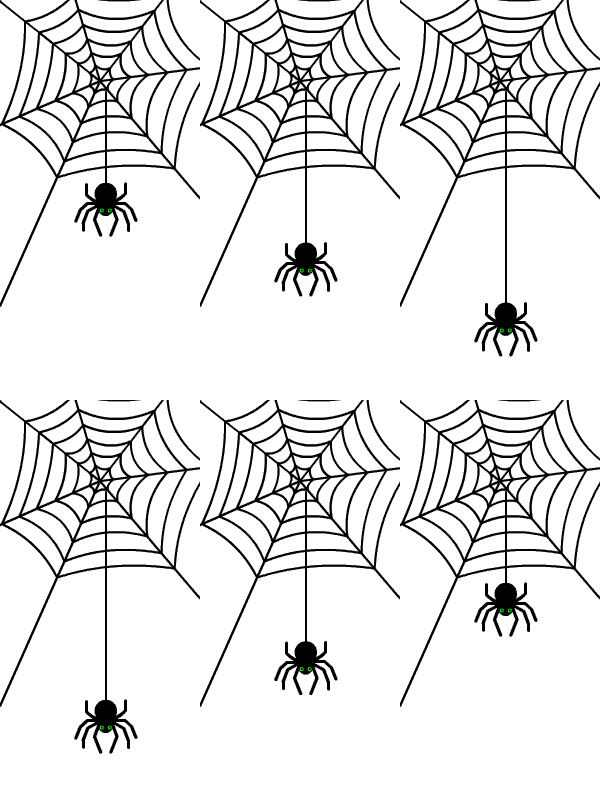


Remember, transparency increases the GIF's complexity. While optimizing, striking a balance between file size and transparency quality is crucial. You don't want to compromise the web's intricate details for the sake of a smaller file size.
Exploring Advanced Transparency Techniques
For more control over your GIF's transparency, consider using advanced techniques. For instance, you can use an alpha channel, a way to specify the opacity of each pixel in an image. This allows for complex layers of transparency, but it might be overkill for a simple spider web GIF.
Another method is using CSS to control the transparency of your GIF. By applying CSS styles to your GIF, you can adjust its opacity, creating a semi-transparent effect. This method requires HTML and CSS knowledge but offers high versatility.
So, the next time you find a captivating spider web, capture it, animate it, and make it transparent. Your GIF will be a window into the fascinating world of spider webs, ready to enchant anyone who crosses its path. Happy GIF-making!
Related Articles
Transparent Spider Web GIF
Spiders, those fascinating arachnids, leave behind intricate webs that are both functional and aesthetically pleasing. One of the most captivating ways to...

Black Spider PNG Transparent Free Download
In the vast realm of digital graphics, there's a particular query that often takes center stage: "black spider PNG." This term, a concatenation of "black,"...

Ice Cream Emoji Transparent: Unveil Your Sweet Messages
The ice cream emoji has become a staple in daily online communication, representing a universal delight that breaks language barriers. However, sometimes, a...

Spider Drawing Ideas for Kids: Fun & Easy Spider Crafts
Is your little oneSpider-Man's biggest fan? Or maybe they just love creating their own whimsical worlds? Either way, drawing spiders is a fun and engaging...

Unveiling the Transparent Red Bull Logo: A Visual Boost
Ever wondered about the vivid, eye-catching red bull logo that's become synonymous with energy and adventure? Its striking design, featuring a silver bull...

Translucent Fright: Scared Eyes Cartoon
Ever found yourself chuckling at the exaggerated, wide-eyed fear in your favorite cartoon characters? That's the power of translucent, 'scared eyes' in...