Master Google Slides: Unveiled Hacks for Impressive Presentations
Google Slides, part of the Google Drive suite, offers a powerful yet user-friendly platform for creating and presenting slides. While it has a straightforward interface, there are numerous hacks and tricks that can significantly enhance your productivity and creativity. In this article, we'll explore some of these useful Google Slides hacks to help you elevate your presentation game.
By understanding and utilizing these hacks, you can create more engaging presentations, save time, and make your slides stand out. So, let's dive right in!
Mastering Google Slides Interface
Before we delve into advanced hacks, let's explore some tips to help you navigate the Google Slides interface more efficiently.


Optimize your workflow by learning the keyboard shortcuts. You can find a list of these shortcuts by pressing '?' on your keyboard while in a slide. They can save you precious time and help you maintain a smooth workflow.
Using Reordering Handles
Google Slides offers reordering handles, small six-sided icons that appear when you hover over a slide in the slides panel. These handles allow you to drag and drop slides to change their order, making it easy to rearrange your presentation on the fly.


To use them, simply click and drag the reordering handle to move a slide. You can also use the 'cut' and 'paste' functions to move slides to different positions in the presentation.
Working with Master Slides
Master slides are a powerful tool for maintaining consistency throughout your presentation. They allow you to apply formatting to an entire theme, including slide layouts, color schemes, and fonts.
To access master slides, click on the 'Edit theme' button in the theme pane. This will open thetheme editor, where you can customize your master slides and apply your changes to the entire presentation.




Enhancing Slide Content
The content of your slides is crucial for keeping your audience engaged. Let's look at some ways to enhance your slides with creative and interactive elements.
One way to make your slides more engaging is to include interactive elements like hyperlinks, animations, and embedded videos. These elements can help keep your audience's attention and provide more in-depth information.
Animating Slides
You can add animations to slides, bullet points, and individual objects to make your presentation more dynamic. To access animations, select an object and click on the 'Animations' button in the toolbar. You can choose from a variety of animations and customize their timing.


Remember, while animations can add a touch of elegance, use them sparingly to avoid distracting from your content. Always preview your animations to ensure they enhance your message, not overshadow it.
Using Emojis for Visual Appeal
Emojis can be a fun way to add some visual appeal to your slides. They can help convey emotion, illustrate a point, or even provide a quick visual explanation. To access emojis, click on 'Insert' in the menu, then select 'Special characters' and choose from the emoji library.
Just like animations, use emojis judiciously to maintain a professional tone and avoid looking too colloquial.
Streamlining Workflow with Templates and Add-ons
Google Slides offers a variety of templates and add-ons to help you save time and add functionality to your presentations.
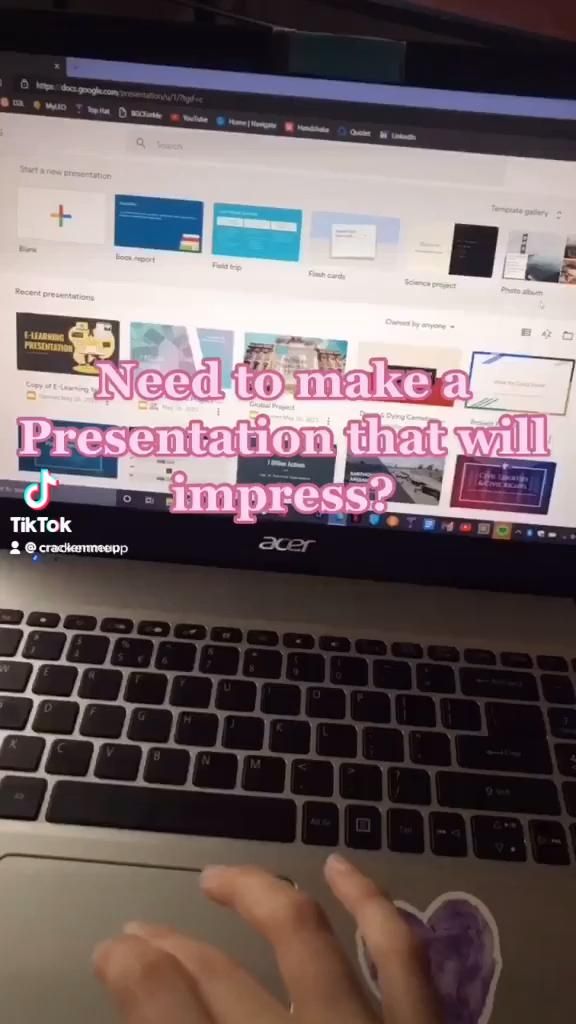
Templates can be a great starting point for new presentations, providing structured layouts and pre-set themes. You can find templates in the 'Template gallery' when you create a new presentation.
Utilizing Add-ons for Advanced Functionality
Add-ons are third-party integrations that extend the functionality of Google Slides. They can help you create graphs, add copyright-free images, or even automatically generate slides from text.
To access add-ons, click on 'Add-ons' in the menu, then select 'Get add-ons'. The Google Workspace Marketplace will open, where you can browse for add-ons that suit your needs.
Collaborating Effectively with Reviews and Comments
Google Slides' collaborative features allow multiple people to work on a presentation simultaneously. The 'reviews' and 'comments' features enable you to provide and incorporate feedback, ensuring everyone is on the same page.
To enable reviews, click on 'Tools' in the menu, then select 'Reviews'. You can then assign reviewers and set a review period. Comments can be added to individual slides or objects by clicking on the 'Comment' button in the top-right corner.
These Google Slides hacks and tricks can help you create polished, engaging, and productive presentations. By mastering these techniques, you can unlock the full potential of Google Slides and take your presentations to the next level. So, go ahead, experiment, and have fun with these powerful tools!
Related Articles
Master Google Slides: Top Hacks You Missed
Google Slides, a popular web-based presentation tool, offers a myriad of features to help you create engaging and informative slides. However, some...
Google Slides: Perfecting Your Aspect Ratio for Impressive Presentations
Creating engaging presentations involves a delicate balance of content and design. One crucial aspect often overlooked is the aspect ratio of your Google...

Fall Google Slides Template: Seasonal Designs for Your Presentations
As the leaves change color and the air turns crisp, it's time to revamp your presentations with the festive spirit of fall. One way to achieve this is by...

Music Theme Google Slides: Enhance Presentations
Transform your Google Slides presentations with captivating music themes, connecting your content with engaging audio experiences. Music serves more than just...

Google Slides Halloween Theme Ideas: Spookify Your Presentations
Transform your Google Slides presentations just in time for the spooky season with our Halloween theme guide. Unleash your creativity and give your audiences...

Family Google Slides Theme: Customizable Templates for Engaging Presentations
Transform your family presentations into vivid and engaging stories with Google Slides' wide array of themes. Choose from a plethora of templates, each crafted...