Fortnite Color Pictures: Free Printable Art
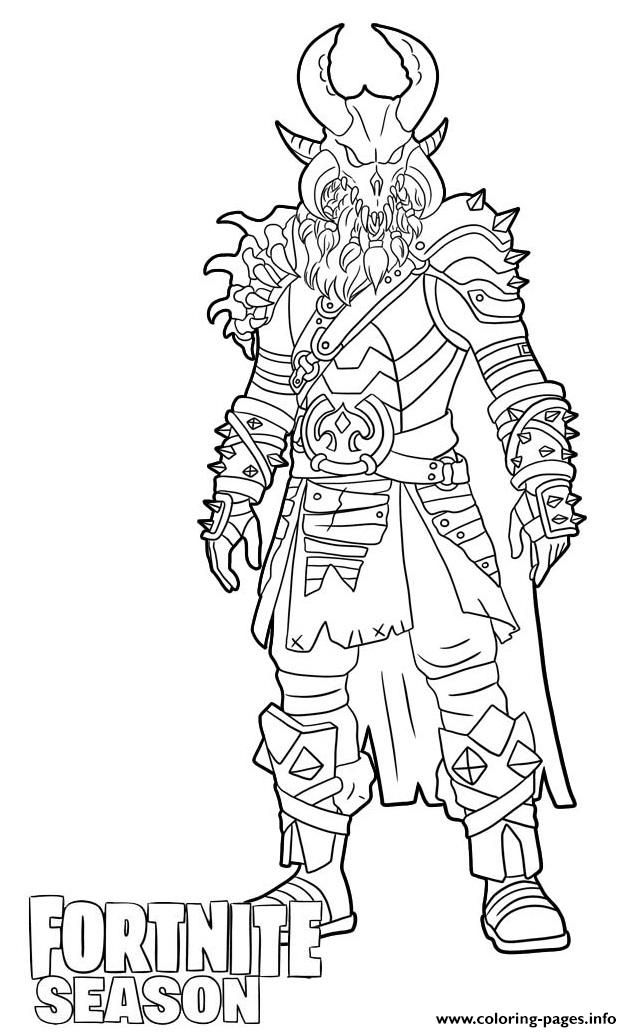
Millions of Fortnite enthusiasts worldwide take immense pride in showcasing their in-game achievements. One way to do this is by printing colorful Fortnite images, capturing memorable moments, or displaying impressive in-game artwork. However, printing Fortnite images in vibrant colors can present a challenge due to screen-to-print color differences. Let's delve into optimizing Fortnite images for color printing.
First, understanding the color profiles of your devices is crucial. Fortnite runs on RGB (Red, Green, Blue) color profiles, whereas printers use CMYK (Cyan, Magenta, Yellow, Key/Black). Converting RGB to CMYK ensuring a closer color match when printing.
Prepare Your Fortnite Screen Capture
Start by capturing your desired Fortnite moment or artwork. Press 'PrtScn' (PrtScn or PrintScrn) on your keyboard or use the Imaging Tools for Office to capture the screen without the Windows taskbar.


Alternatively, for a more precise capture, use third-party tools like Lightshot orGreenshot, which allow you to select the specific area to capture.
Image Resolution and Size
Ensure your captured image resolution is suitable for printing. A resolution of 300 DPI (Dots Per Inch) is ideal for images up to 8x10 inches. For larger prints, use higher resolutions (up to 600 DPI) to maintain image sharpness.


Adjust the image size based on the printer's paper dimensions. Most standard printers support A4 (210 x 297 mm) or US Letter (8.5 x 11 inches) paper sizes. Resize your image accordingly, ensuring it fits within these dimensions.
Optimize Colors for Print
As mentioned earlier, RGB to CMYK conversion is essential. Use photo editing software like Adobe Photoshop or GIMP for this process. Both offer CMYK conversion options:
- Photoshop: Image > Mode > CMYK Color
- GIMP: Image > Mode > CMYK
After conversion, open your CMYK image in the print software (e.g., Microsoft Print to PDF or a third-party tool like PDF Creator). Preview and adjust color settings to match the desired output. Repeat RGB to CMYK conversion if needed until satisfied with the color accuracy.



Printing Fortnite Images
Once you've optimized your image for print, connect your printer and select it as the default printer. Ensure you're using high-quality paper suitable for the printer and ink type.
Consider using borderless printing for seamless, frame-worthy Fortnite images. Most printers support borderless printing, enabling you to maximize the printed area.
Use High-Quality Printer Settings
Adjust printer settings to achieve the best results. Set the print quality to 'High' or 'Photo', choose a suitable print resolution (usually 'High' or 'Photo'), and select the appropriate paper type and resolution.


Preview the print job to check for any issues with color, skew, or scaling. Make necessary adjustments before printing to prevent wasting ink and paper.
Maintain Printer Health
Clean your printer's ink cartridges and heads regularly to prevent color banding or inconsistent printing. Replace ink cartridges when empty and consider using third-party ink for a cost-effective alternative.
Regularly clean the printer's interior using compressed air and a mild cleaning solution to remove dust and ink residue. Maintaining printer health ensures consistent, high-quality prints.
Embrace your favorite Fortnite moments and artwork by printing colorful, optimized images. Display them proudly, showcasing your gaming skills and epic victories. Happy printing, and may your Fortnite expeditions always end in Victory Royale!
Related Articles

Cars to Color & Print: Fun & Free Printable Puzzles
Imagine transforming a plain, black-and-white image into a vibrant, color-rich masterpiece. That's exactly what you can do with pictures of cars to color and...

Color Your Day with Adorable Sloths: Free Printable Coloring Pages of Sloths
In the vast digital tapestry of the internet, there's a corner dedicated to soothing, giggle-inducing slackers—sloths. Their peaceful eyes, slow-moving charms...

2023 Top Free Fill in Color Pictures - Printable for Kids
Ever marveled at the ability to breathe life into static images? The art of fill in color pictures, or coloring books for adults, has taken the world by storm...

Dragon Coloring Pages: Free Pictures to Color & Print
Unleash your creativity and discover the joy of coloring while exploring the mythical world of dragons with our enchanting collection of dragon pictures to...

Color Zubat: Free Printable Coloring Pages
Paint the night with Zubat's distinctive silhouette as you explore the depths of coloring pictures of the iconic bat-like Pokémon. With its unique design and...

Grinch Coloring Pages: Free Printable Pictures of Dr. Seuss' Iconic Character
The Grinch, an iconic character from Dr. Seuss' popular tale "How the Grinch Stole Christmas", is beloved by both children and adults alike. His mischievous...