Add Custom Emotes to Discord with These Easy Addons
In the dynamic world of digital communication, Discord has emerged as a popular platform for gamers and communities. While its inherent features are robust, users can enhance their experience by adding custom emotes. Discord emotes, also known as emojis, are a fun way to express feelings, react to messages, or simply add a touch of entertainment to conversations. But how do you add custom emotes to your server? Let's dive into the process, with a focus on SEO-optimized content for a comprehensive guide.
Custom emotes can significantly improve communication and engagement on Discord. They allow you to express a wide range of emotions, reactions, and shared inside jokes. Plus, they contribute to a unique, branded look for your server. So, whether you're a server admin, bot developer, or just eager to uplift your emote game, this guide will walk you through the process of adding custom emotes to your Discord server.
Understanding Discord Emotes
Before we delve into adding custom emotes, it's essential to understand Discord's emote system. Discord emotes are actually animated PNG (APNG) or Lottie files, which are stored as .gif or .webp files. They are versatile, supporting both animated and static images. However, each server has a limitation of 50 custom emotes, encouraging users to curate their collection.


Once added, emotes can be used in text channels, voice channels, and direct messages. They can also be pinned to quick access trays for expedited usage. To use an emote, simply type its name in the message composer, just like you would with default emojis.
Finding the Perfect Emote
Before you start, you'll need to select your emotes. You can choose from existing emojis, create your own, or commission custom artwork. Remember to consider your server's theme and community when selecting emotes. Also, check that the chosen emotes don't already exist as default emojis to avoid confusion.


Platforms like Emoji.zone or Emojitable provide vast libraries of emojis to explore. For animated emotes, explore sources like Tenor or GIPHY. Alternatively, consider hiring a graphic designer or illustrator to create unique emotes for your server.
Emote Guidelines and Limitations
While composing your emote list, keep Discord's guidelines in mind. Emotes must be 128x128 pixels (though they can be larger, they'll be resized to fit) and less than 256KB in size. Animated emotes must be in APNG or Lottie format, with a frames limit of 10. Emotes also can't violate Discord's terms of service, meaning no hate symbols, violence, or inappropriate content.
Additionally, each server user is limited to using 50 emotes in messages at a time. This limit resets every 10 minutes, encouraging mindful usage. When adding emotes, keep an eye on your server's tally to ensure you stay within the 50 emote limit.


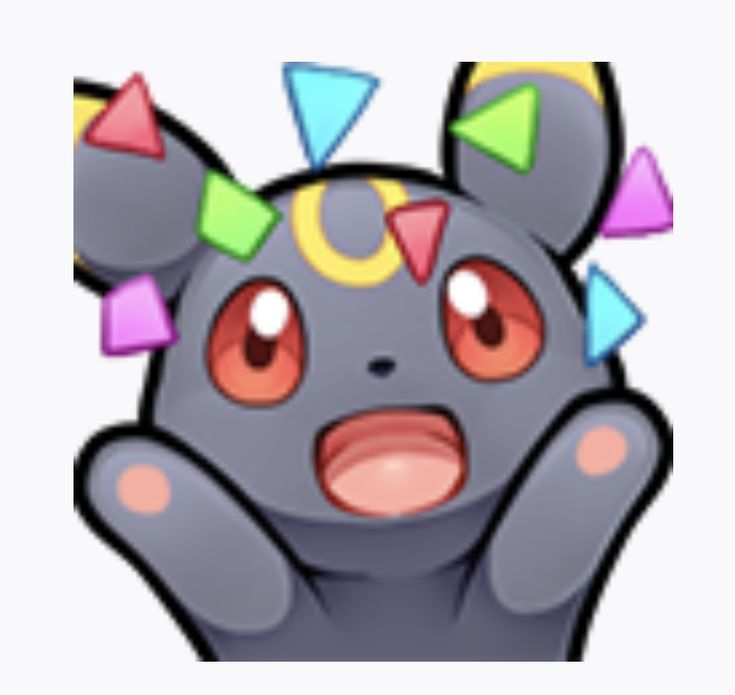


Adding Custom Emotes to Your Server
Now that you've sourced and approved your emotes, it's time to add them to your server. To do this, you'll need the 'Manage Emojis' permission. Server admins can perform this task, and you can also grant this permission to other users using the 'Manage Server' tab in server settings.
To add an emote, follow these steps:
- Navigate to your server settings by right-clicking the server icon and selecting 'Server Settings'.
- In the 'Appearance' category, click 'Emoji'.
- Click the 'Upload Emoji' button.
- Select your emote image or GIF file.
- Name your emote (using letters, numbers, underscores, and hyphens only).
- Click 'Upload' to add your emote.
Organizing Your Emotes
Adding custom emotes is only half the battle; organizing them is crucial for usability. Discord allows you to sort your emotes into categories, making it easier for users to find the emote they need.


To create and manage categories, head back to the 'Emoji' section in your server settings. There, you'll see an option to 'Create Category'. Make a category for your themed emotes, such as 'Reactions', 'Gaming', 'Actions', or 'Server-specific'. Once created, you can drag and drop emotes into their respective categories for a cleaner emote list.
Emote Automation with Bots
For larger servers or those wanting to automate the emote addition process, consider using bots. Bots like Dyno, Medibot, or Rythm can import emotes from an image URL or a list of emote information. They can also remove unused emotes, helping to keep your emote list tidy.
Bots often require a token to interact with your server. To invite a bot, use a service like top.gg or avoidbot.com to find the bot, then click 'Invite'. Follow the prompts to grant the bot the necessary permissions and invite it to your server. Once the bot is present, you can configure it to add or manage your emotes.
Adding custom emotes to your Discord server can greatly enhance your community's communication and engagement. It's a fun, creative way to express yourself and make your server stand out. With this comprehensive guide, you should now be equipped to curate and manage your own custom emote collection. So go ahead, express yourself, and make your Discord server truly one of a kind!
Related Articles

HEIC to PNG: Convert Seamlessly with These Easy Steps
In the world of digital imaging, file formats are constantly evolving to meet the demands of creative professionals and tech enthusiasts alike. One such format...

Unlocking Flavor: The Ultimate Guide to Discord Food Emotes
The world of online gaming and digital communities has been revolutionized by Discord, a tailored communication platform that's come to dominate the scene. So...

Convert Raw to JPEG: Seamless Image Conversion with These Easy Steps
In the digital age, image files come in various formats, each serving a unique purpose. One of the most common scenarios you might face is needing to convert...

Hisense TV Hulu App: Stream Seamlessly with These Easy Setup Steps
Experience enhanced streaming on your Hisense TV with the Hulu app, seamlessly integrating a wide variety of entertainment options right at your fingertips...

"Unlock Discord's Overwatch: Ultimate Emote Face-off"
In the vibrant world of online gaming, communication platforms like Discord have become integral to fostering gaming communities. Nowhere is this more evident...

League of Legends: Best Discord Emotes & How to Use
If you're a League of Legends enthusiast, you've probably mastered the game's complex mechanics, learned the strengths and weaknesses of each champion, and...